A Transient Suppressions List ("TSL") is a temporary population of contacts that will be blocked from receiving any messages from your account. You create the list, and then assign an expiration date to the list.
You may have more than one TSL active in your account.
NOTE: It is highly recommended you read the "New UI Basic Functions Overview" article first, as it provides an overview of all Pinpointe audience types and how the various pages and sections are accessed and structured.
TABLE OF CONTENTS
There are several ways to access the Transient Suppressions Lists page.
- Select the "Transient Suppressions" option under the main "Contacts" menu. This will take you directly to the TSL page.
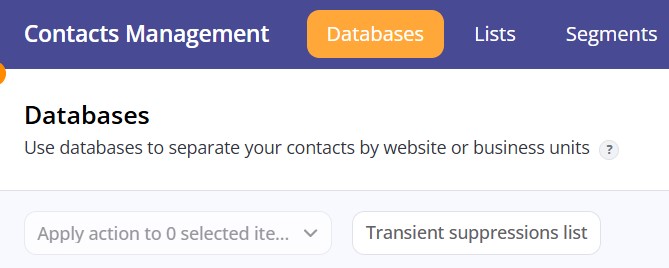
- Select the "Manage Database(s)" option under the main "Contacts" menu. This will take you directly to the Databases page, where you can then click the "Transient Suppressions list" button.
Creating a Transient Suppressions list
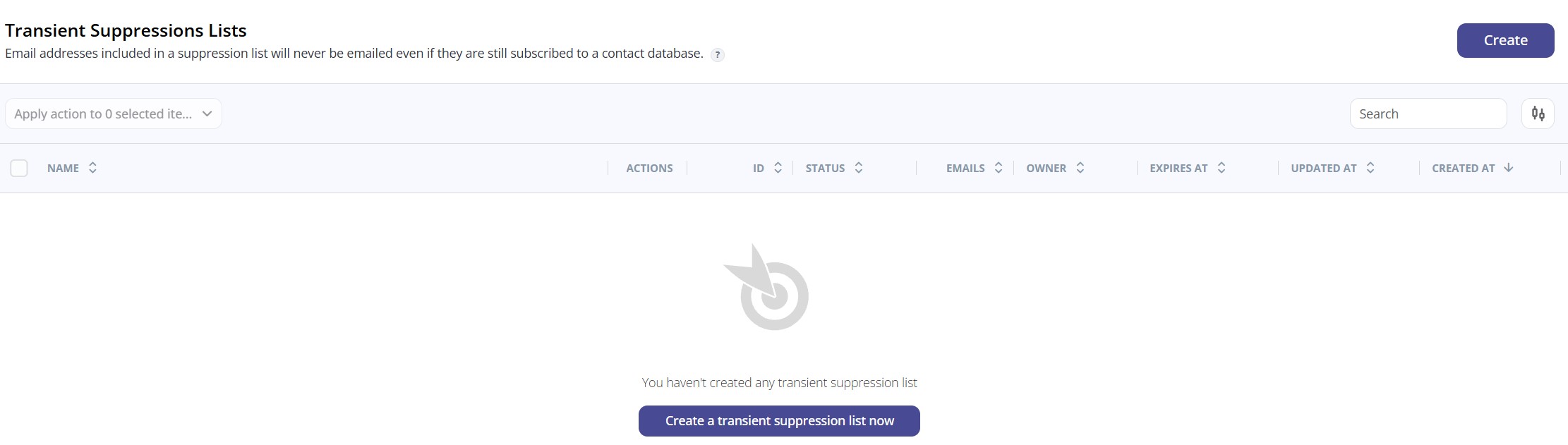
To create a new TSL, navigate to the Transient Suppressions List page using one of the two options noted above. Once on the page, you will see a "Create" button in the top far right corner (If you currently have no TSLs yet, you will also see a "Create" button in the middle of the screen).
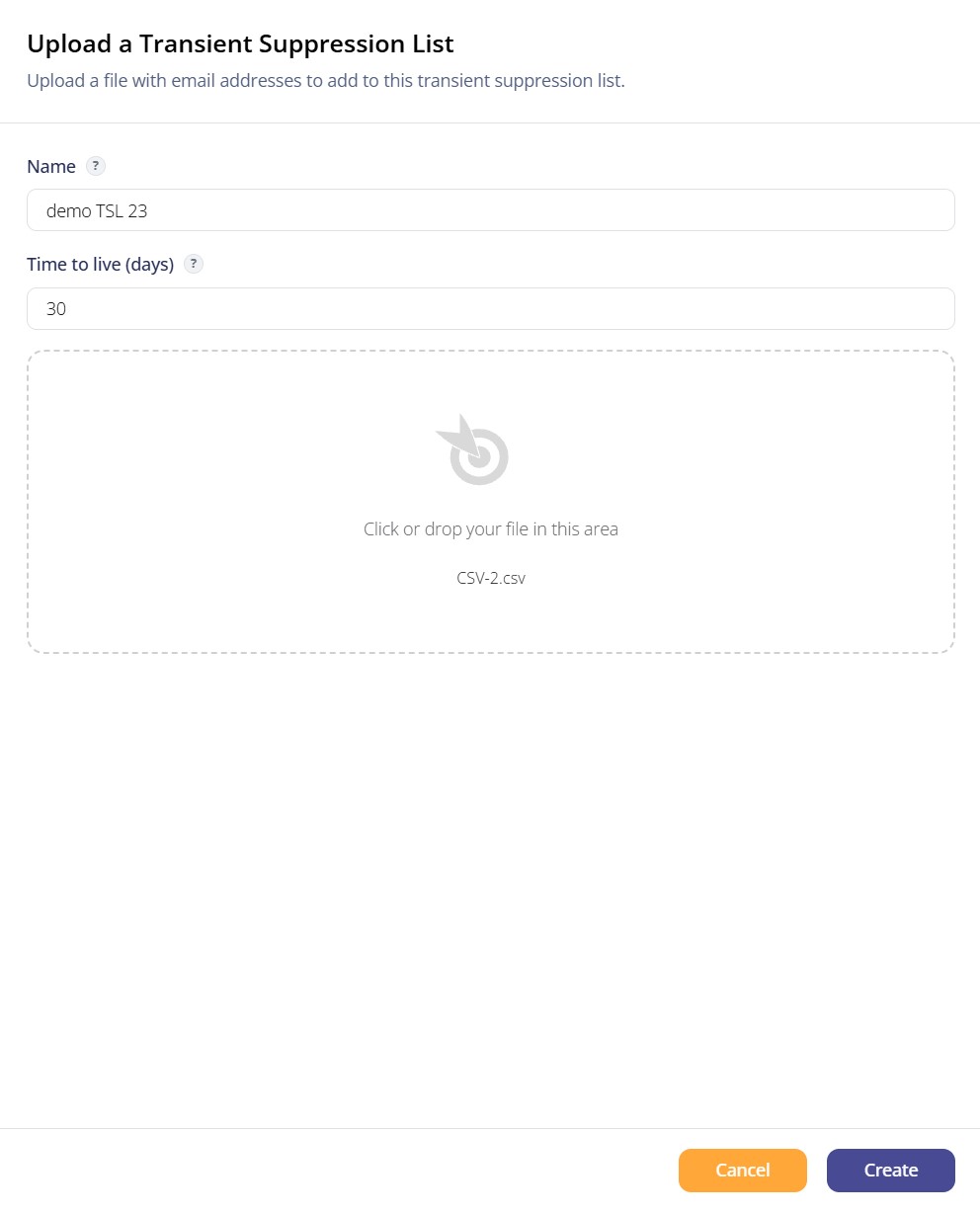
Clicking on the button will display a single pane on the right side of the screen. The pane has three input fields:
- Name - allows you to name the TSL
- Time to live (days) - allows you to set the active life of the TSL in number of days. This day counter will start as soon as you hit the "Create" button at the bottom right of this pane.
- File input area - An area with a dashed border where you can either drag a CSV file with the email addresses you wish to temporarily suppress from your local file structure, or select the file in your local system you wish to load / save into the file input area
The TSL will now be displayed in your Transient Suppressions Lists page:

There are a couple of additional actions you can take:
- Apply Actions dropdown near top left. You can apply an action from the drop down list to one or more TSLs depending on how many are selected via the checkbox on the far left column.
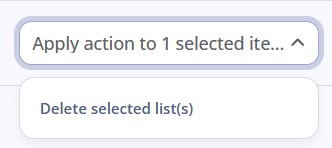
Here is a brief description of the action:
- Delete selected list(s) - deletes one or more TSLs
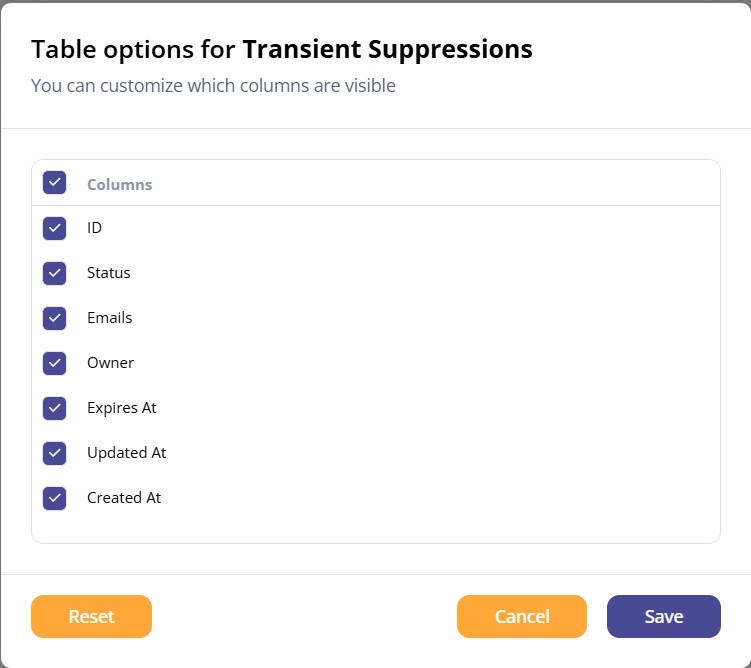
- Table Options - clicking the small "slider" icon at the far top right of the page brings up a modal that allows you to select which columns will be viewable when viewing the page.

- The ACTIONS column allows you to select from a series of options shown in a dropdown list. Find the TSL you wish to work with, then click the three horizontal dots icon in the ACTIONS column for that list.
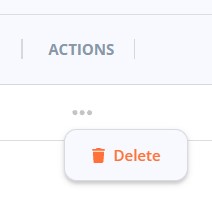
Here is a brief description of each action:
- Delete lets you delete your TSL
Additional columns on the Transient Suppressions Lists page are:
- NAME - name of your TSL
- ID - the ID number for your TSL
- STATUS - the activity status of your TSL
- EMAILS - the number of email addresses in your TSL
- OWNER - the user or subuser who created the TSL
- EXPIRES AT - The date and time the TSL expires
- UPDATED AT - timestamp of the most recent update
- CREATED AT - displays the timestamp of when the list was originally created