Welcome to Pinpointe's New UI! The New UI will make parts of Pinpointe, including Contacts Management, Forms, and Resource Management, have a more modern look and feel.
We're going to take a look at how to opt in and out of the New UI and how to navigate its brand new look.
TABLE OF CONTENTS
Pinpointe's New UI
Opting Into Pinpointe's New UI
After logging in and navigating away from the main dashboard, you should be able to see a banner at the top that states "We're giving Pinpointe an exciting new look! Would you like to switch over to the new UI to give it a spin?" (Fig 1).
Fig 1

Clicking the "Try New UI" button on the far right of the banner switches you over to the New UI (Fig 2).
Fig 2

If the changes don't appear right away, you might need to refresh your browser.
Opting Out of Pinpointe's New UI
If you don't want to use Pinpointe's New UI, you can choose not to click the "Try New UI" button.
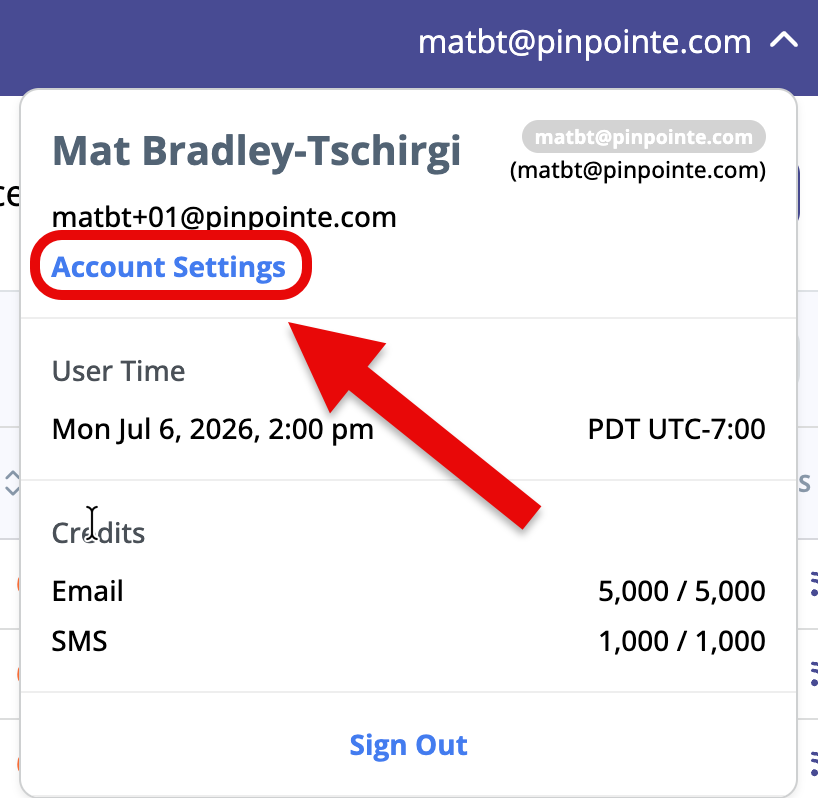
If you have switched over to Pinpointe's New UI and want to switch back to the Legacy UI, click on your user name in the upper-right corner and click on Account Settings (Fig 3).
Fig 3
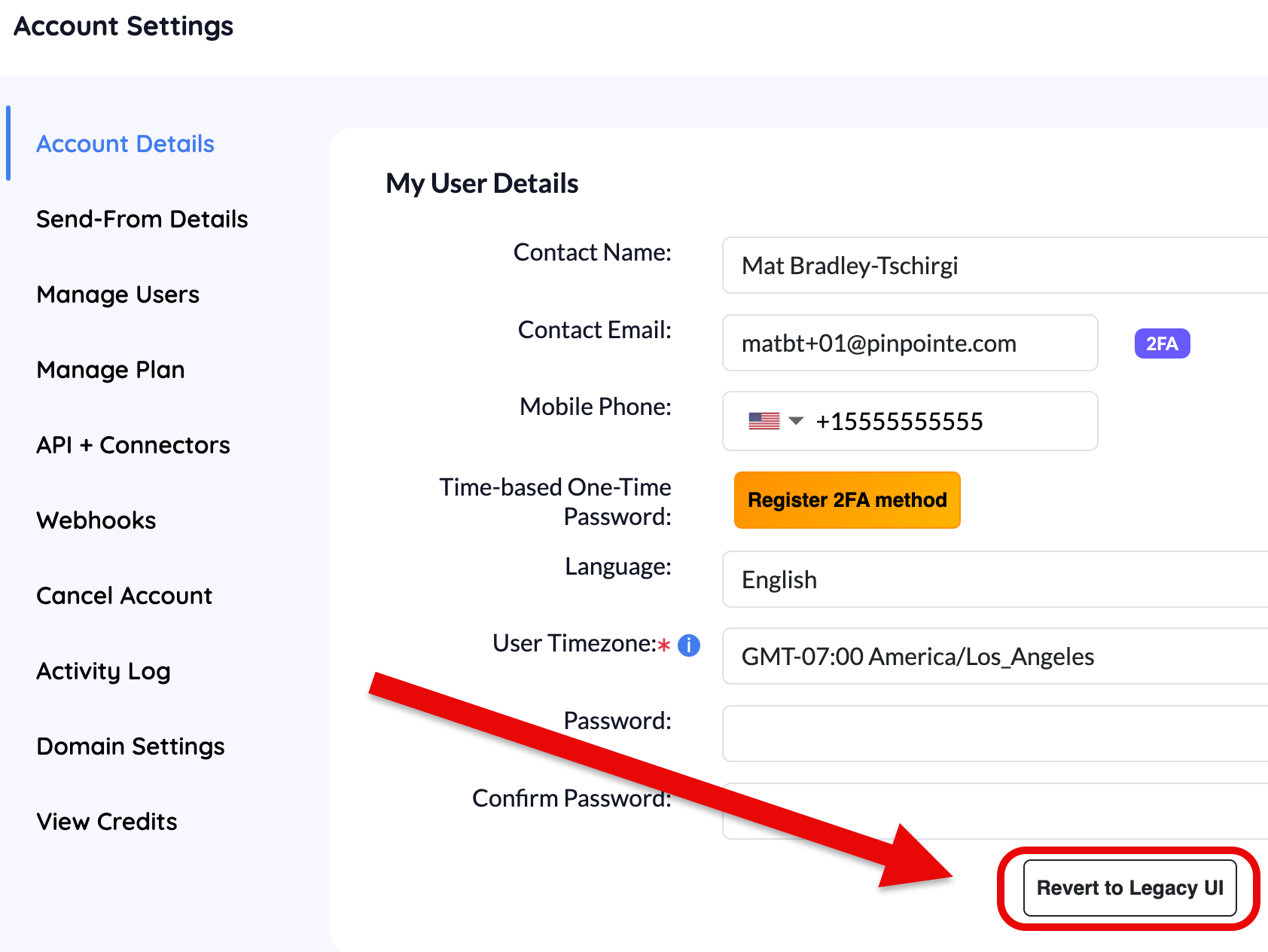
Now click the Revert to Legacy UI button (Fig 4) to switch back to the Legacy UI.
Fig 4
Please note that reverting to the Legacy UI will make the Try New UI banner reappear.