TABLE OF CONTENTS
To comply with the CAN-SPAM Act's legal requirements, all Pinpointe campaigns must contain an unsubscribe link. Therefore, Pinpointe scans your campaigns before they are sent, and if an unsubscribe link is not found in the email, one will be added automatically. If you do not have an unsubscribe link in both the Text and the HTML versions of your email, one will be added.
You can customize the wording for the unsubscribe link and/or place it within your email design.
Basic Editor
In the Basic Editor, click in the email where you want your Unsubscribe Link.
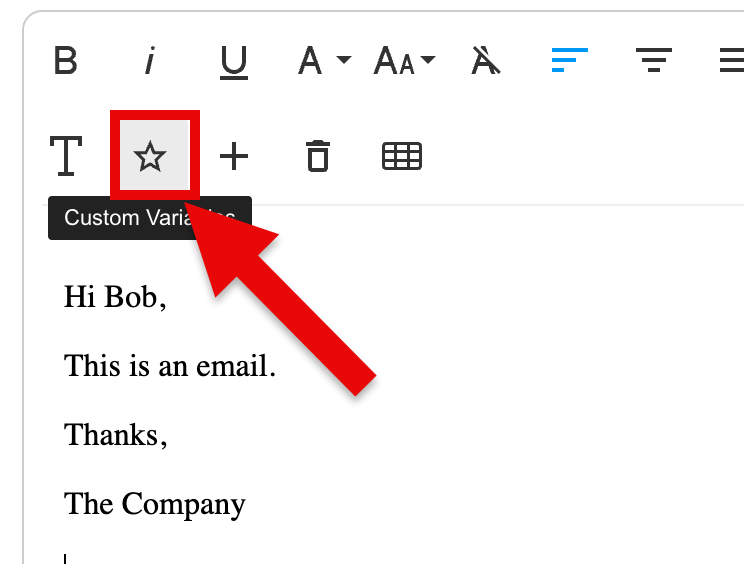
Next, click the Custom Variable button on the toolbar (the star icon) (Fig 1).
Fig 1
Now you'll see the Custom Variable window come up (Fig 2).
Fig 2
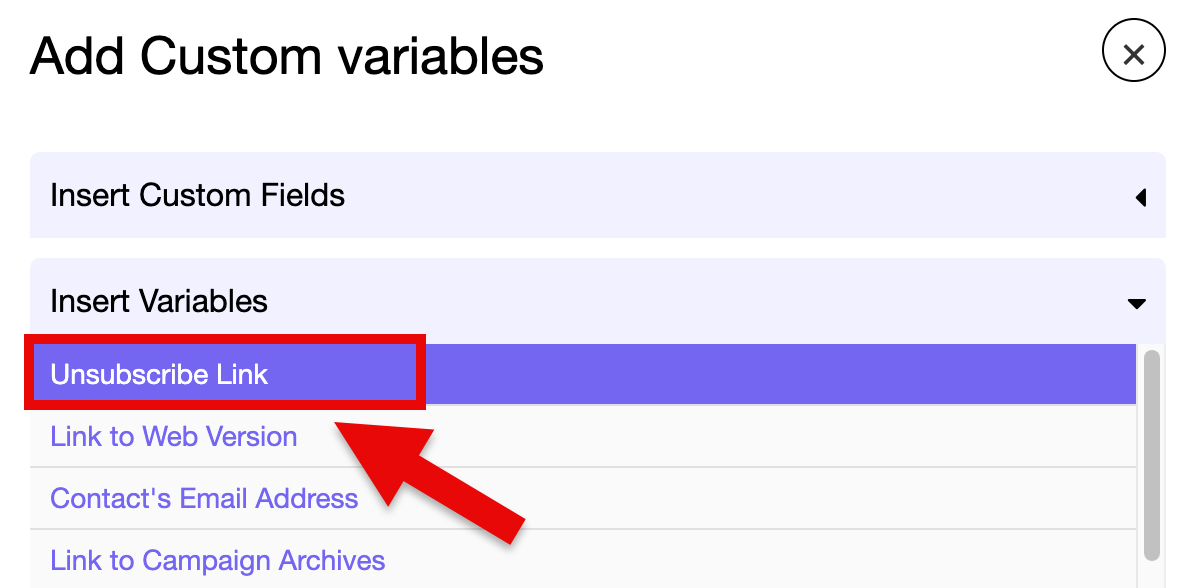
Click Insert Variable to open up the Insert Variable menu and then click on Unsubscribe Link.
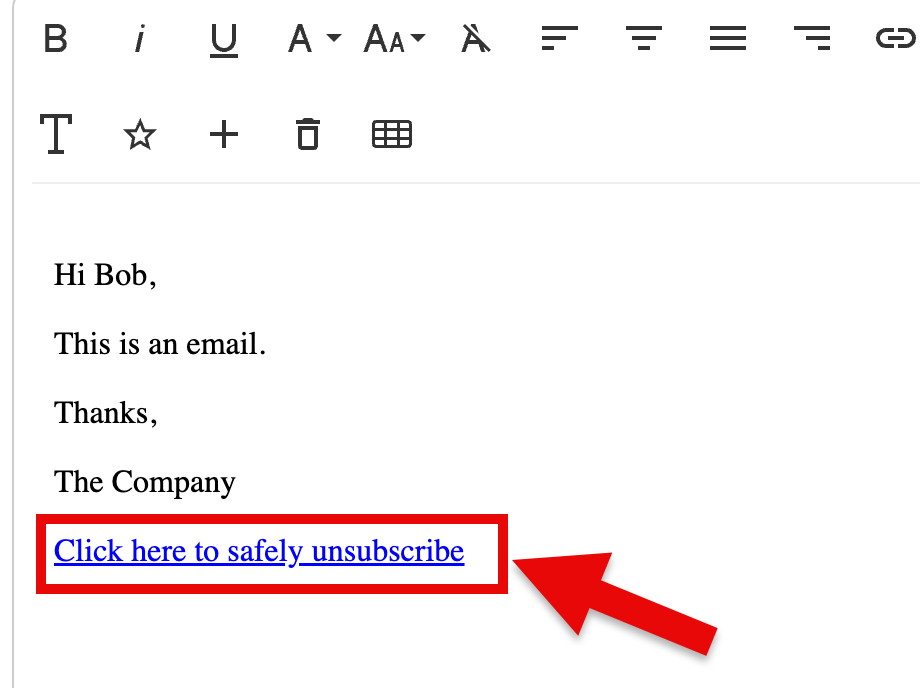
Now, the Unsubscribe link will be inserted into your email (Fig 3).
Fig 3
DND Builder
In Pinpointe DND Builder, click in the text block where you'd like to place your Unsubscribe Link, then click the "Insert Variable" button on the left to open the Insert Variables menu (Fig 4).
Fig 4
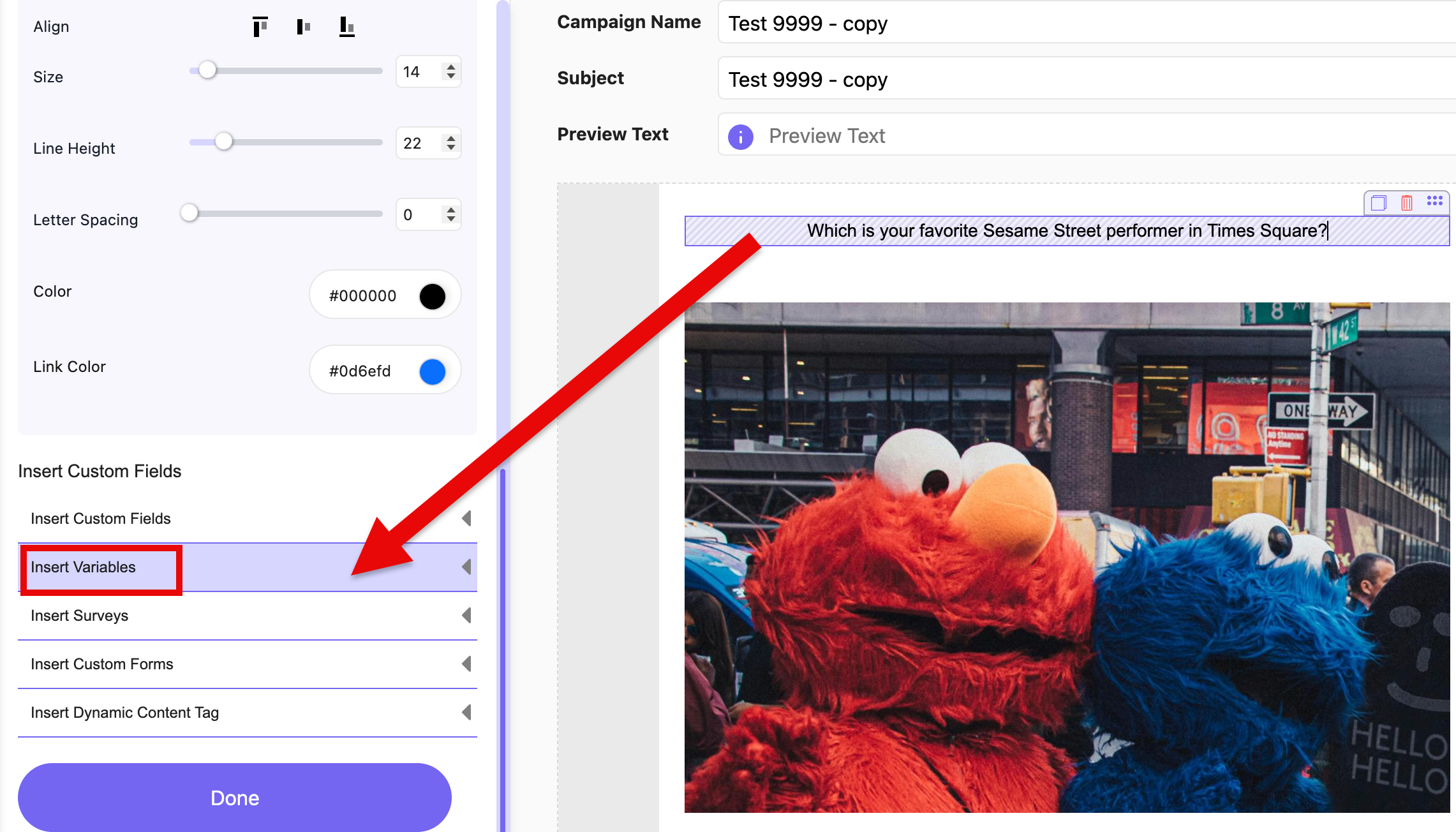
Now that the Insert Variables menu is open, click on the "Unsubscribe Link" button (Fig 5).
Fig 5
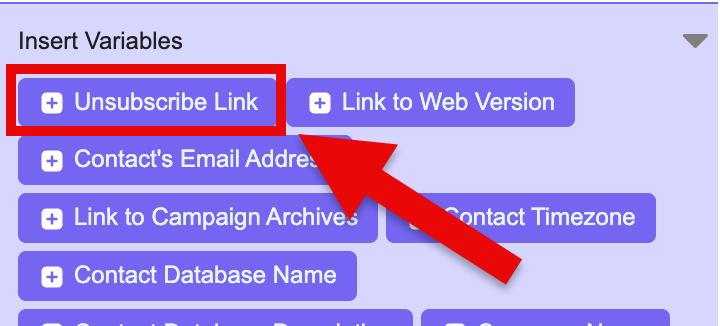
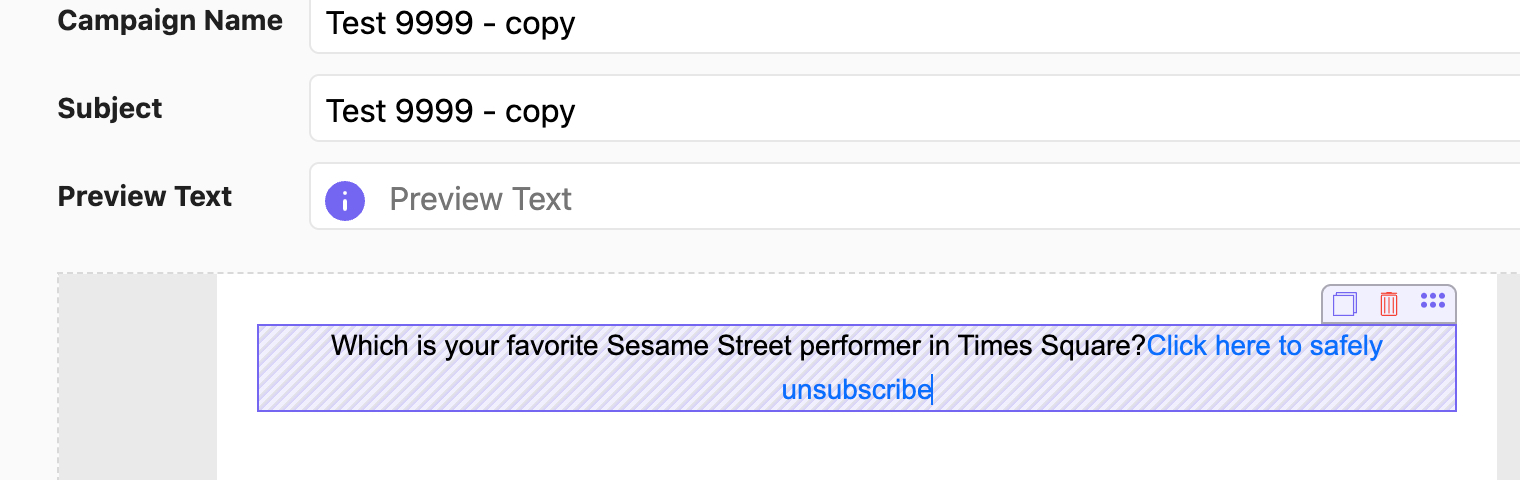
Now you should see your Unsubscribe Link in your email (Fig 6).
Fig 6