After creating a Content Block, we can add it to your Email Campaign.
There are two ways to add them: manually typing them in the body of the Email Campaign or adding them via the Text widget.
TABLE OF CONTENTS
Adding Content Blocks via Text Widget
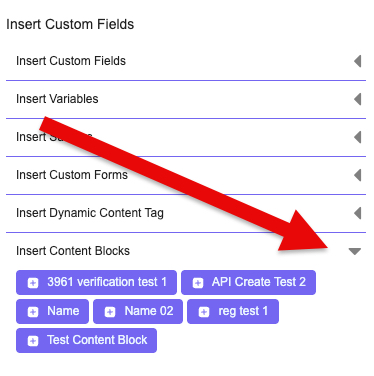
In your Email Campaign, click in the text in your text widget and look at the Text Widget menu on the left, scroll down, and click Insert Content Blocks (Fig 1).
Fig 1
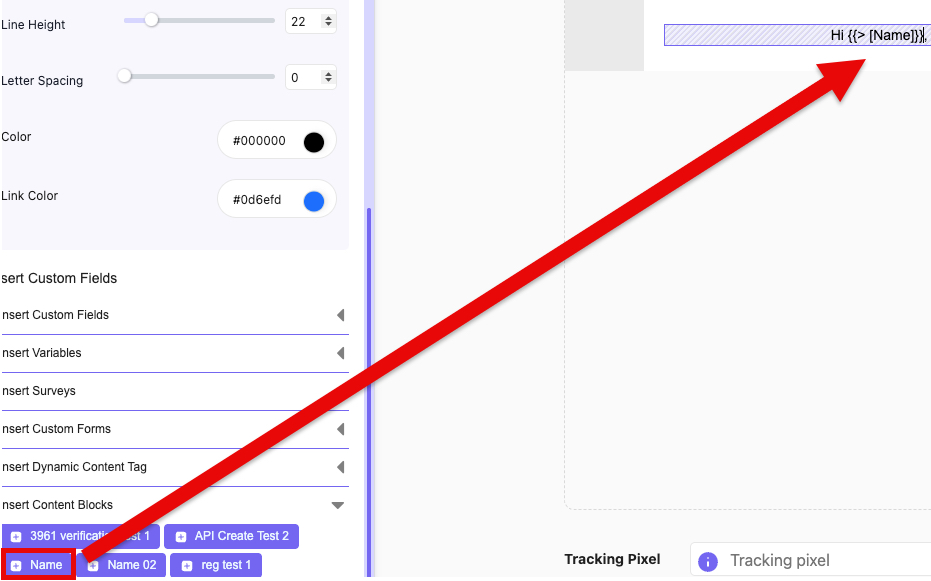
 Clicking the Content Block you want to add will add it in your text widget as show (Fig 2).
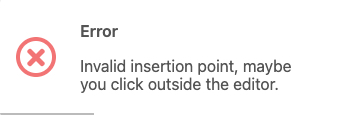
If you are not in a Text Widget and click on a Content Block to add, you'll get an error message (Fig 3).
Fig 3
Manually Adding Content Blocks
In your Email Campaign, you can add the Content Block by typing it in as "{{> [name of block'}}"
In this example, we're creating a Content Block called Name that will insert the First Name and Last Name from your list in your Email Campaign.
In your Email Campaign, add a Text Widget and type in the Content Block in the text widget.
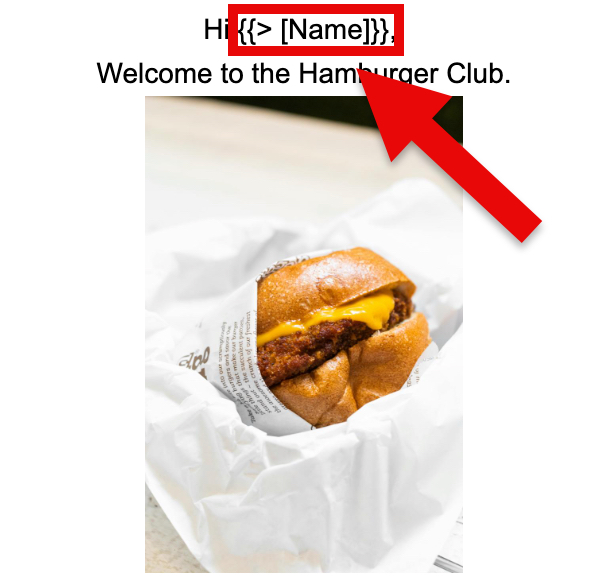
In our example, we're adding our Content Block Name by typing "Hi {{> [Name]}},"
After sending out the Email Campaign, this populates the beginning of the email with Hi followed by their first and last name (Fig 1).
Fig 1
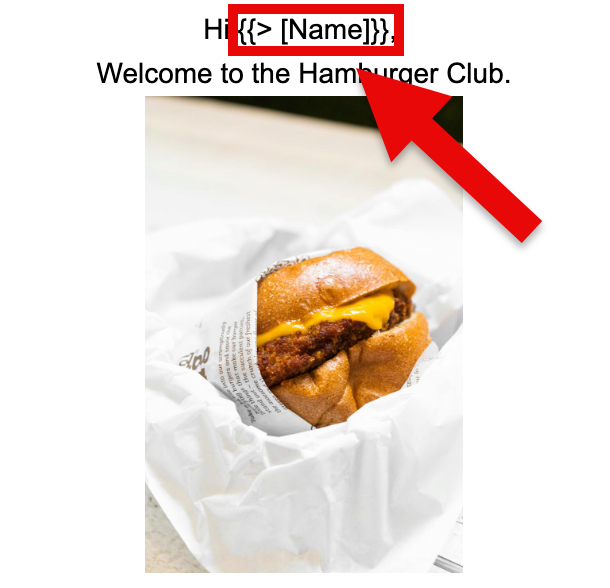
After sending our your Email Campaign, the Content Block in this example will by populated by the recipient's first and last name, which is taken from their list (Fig 2)
Fig 2
To learn more about Content Blocks, click on the corresponding link below:
Adding Content Blocks in the Basic Editor